
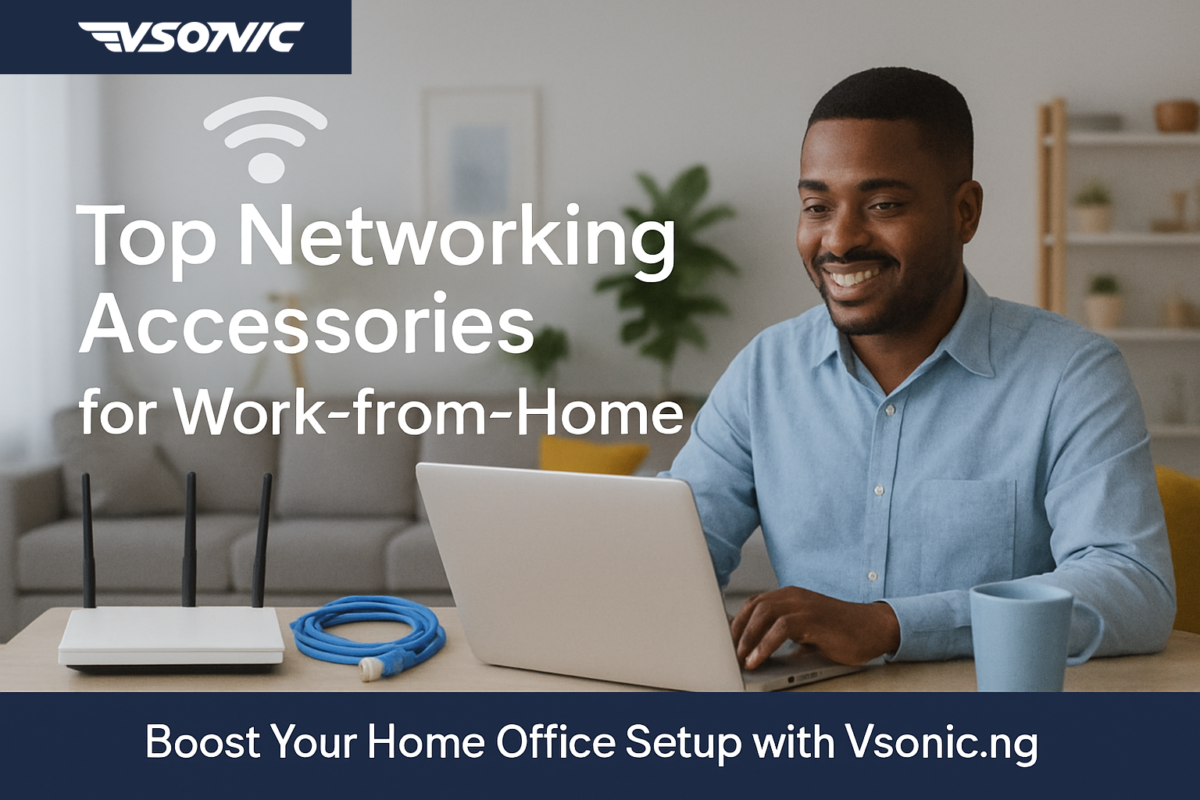
Working from home depends on more than a capable laptop and a comfortable chair. Your network also needs to handle video meetings, cloud documents, large downloads, shared printers, and the many devices connected to a modern home. When the connection drops during a client call or a file takes too long to upload, productivity quickly suffers.
The good news is that you do not always need a more expensive internet plan to improve your experience. Sometimes, the issue is Wi-Fi coverage, an old router, a weak adapter, or a network setup that does not suit the space. This guide explains the must-have networking accessories for work-from-home efficiency and how to choose the right ones for your Nigerian home office.
Start by identifying the problem
Before buying networking equipment, work out what is going wrong. If the internet is slow on every device, the issue may be your service provider, data plan, or connection type. If the connection works well beside the router but fails in another room, coverage may be the problem. If only one laptop struggles, its Wi-Fi adapter or software may need attention.
Run a speed test near the router and again at your usual work desk. Compare results at different times of day, and check whether the problem affects all devices. This simple diagnosis can prevent you from spending money on an accessory that will not solve the real issue.
1. A reliable Wi-Fi router
The router manages traffic between your devices and the internet connection. An older or entry-level model may struggle when several people are streaming, joining meetings, gaming, and downloading files at the same time.
When comparing routers, look at Wi-Fi generation, supported bands, Ethernet ports, security updates, and the number of devices you expect to connect. Wi-Fi 6 can offer better capacity and efficiency in busy networks, but the improvement you experience also depends on your internet plan, device compatibility, home layout, and interference.
Dual-band routers typically provide 2.4 GHz and 5 GHz networks. The 2.4 GHz band often reaches farther and passes through obstacles more effectively, while 5 GHz can provide higher speeds over shorter distances. Choose the band that suits your room and device rather than assuming one is always best.
2. Mesh Wi-Fi systems and range extenders
A router cannot always cover an entire home, especially in a duplex, a large apartment, or a building with thick walls. Weak coverage can cause video calls to freeze, file uploads to fail, or devices to disconnect when you move between rooms.
A Wi-Fi range extender rebroadcasts the existing wireless signal. It can be a practical option for a specific dead zone, but it needs to be placed where it still receives a good signal from the router. Putting an extender in the area with the weakest signal may simply extend a weak connection.
A mesh Wi-Fi system uses multiple nodes to create a coordinated network across a larger area. It can provide smoother coverage and easier management, though performance depends on node placement and whether the nodes use a wired or wireless backhaul. For a small home, a well-positioned router may be sufficient; for a larger space, mesh may be worth considering.
3. Ethernet cables for dependable connections
Wi-Fi is convenient, but a wired Ethernet connection is often the simplest way to improve stability for a stationary work computer. A cable can reduce the effects of wireless interference and help deliver consistent performance for video meetings, remote desktop sessions, and large file transfers.
Cat5e and Cat6 cables are common choices for home networks. Cat6 is a sensible option for many new installations, but the cable category alone does not guarantee a faster internet connection. The router, network adapter, cable length, and service plan also determine performance. Buy a cable long enough to reach safely without stretching it across a walkway.
If you cannot run a cable permanently, use clips or cable covers to keep it tidy. For a desk used every day, a wired connection can be a worthwhile upgrade because it reduces dependence on wireless signal strength.
4. USB Wi-Fi adapters
Some desktop computers do not have built-in Wi-Fi, and older laptops may have weak or outdated wireless hardware. A USB Wi-Fi adapter can add wireless capability without requiring you to open the computer.
Before buying one, check your computer’s operating system, USB port type, supported Wi-Fi standards, and whether you need dual-band connectivity. A tiny adapter is convenient for travel, while a larger model with an external antenna may provide better reception in some environments. Neither option can overcome every coverage problem, so consider the location of the router as well.
5. Network switches for extra wired ports
A router may not have enough Ethernet ports for every device you want to connect. A network switch adds more wired ports, making it useful for a home office with a desktop computer, network printer, storage device, IP phone, or other Ethernet-enabled equipment.
For most small offices, an unmanaged Gigabit Ethernet switch is straightforward to install: connect it to a LAN port on the router, then connect your wired devices to the switch. Choose a switch with enough ports for current devices and a little room for future growth. If you need advanced network controls, such as VLANs, check whether a managed switch is appropriate.
6. Powerline networking adapters
Powerline adapters can carry network data through a building’s electrical wiring, allowing a device in another room to connect without a long Ethernet cable. A typical kit uses one adapter near the router and another near the work area.
Performance varies significantly with the condition and layout of the electrical wiring, the circuits involved, and electrical interference. The advertised speed is a theoretical maximum, not a promise of real-world throughput. Powerline networking may be convenient in some homes, but it is not guaranteed to work well in every building. Follow the manufacturer’s instructions and avoid plugging adapters into unsuitable extension arrangements.
7. Surge protection and backup power
Routers, modems, switches, and other network equipment need power to work. Voltage disturbances can also damage electronics. A suitable surge protector can help protect connected equipment, but not every power strip provides meaningful surge protection, and a surge protector is not the same as a voltage regulator or an uninterruptible power supply.
A UPS can keep a modem and router running during a short outage, depending on the equipment’s power draw and the UPS battery capacity. For longer outages, a properly sized inverter or other backup system may be more suitable. Check the voltage and wattage requirements of every device and allow for the UPS’s usable capacity.
Remember that backup power only keeps your local equipment running. If your internet provider’s equipment or mobile network is also down, your connection may still fail. A mobile hotspot from a different network can sometimes provide a backup route, depending on signal strength, data cost, and service availability.
8. A mobile hotspot or 4G/5G router
If your fixed broadband service is unreliable or unavailable, a mobile hotspot or cellular router can offer another way to get online. This can be useful for remote workers who need a fallback during service interruptions or who work from different locations.
Before relying on mobile data, test the network at your home office at the times you usually work. Signal strength indoors, network congestion, data allowances, and the cost of frequent video calls can all affect suitability. An external antenna may help with some cellular routers, but only if the device supports it and the signal conditions justify it.
9. USB hubs and docking stations
A USB hub or docking station is not a network accessory in every case, but it can make a home office easier to manage. Some docks include an Ethernet port, allowing a compatible laptop to use a wired connection while also connecting a monitor, keyboard, mouse, and other peripherals.
Check whether your laptop supports the dock’s connection type and whether it can provide the power delivery you need. A simple USB hub may expand ports but may not support an external display or laptop charging. Confirm compatibility before buying.
10. Keep your network secure
Productivity also depends on protecting work accounts and devices. Change default router administrator credentials, use WPA2-AES or WPA3 security where supported, and install firmware updates from the manufacturer. Set a strong Wi-Fi password and use a guest network for visitors or devices that do not need access to your work equipment.
For remote access to company systems, follow your employer’s VPN and security requirements. Avoid managing sensitive work on unknown public Wi-Fi without appropriate protection. Security features vary between routers, so check the model’s update policy and support life when comparing options.
A simple home-office network setup
A practical setup for many remote workers includes a capable router, an Ethernet cable for the main work computer where possible, and a UPS for the modem and router if short outages are common. Add a range extender or mesh system only if coverage tests show that the existing router cannot reach the work area.
If several wired devices share the workspace, add a Gigabit switch. If your fixed broadband frequently fails, test a mobile hotspot or cellular router as a backup. You do not need to buy every accessory on this list; choose based on the problem you need to solve.
Troubleshooting tips before you spend
- Restart the router and modem if your provider’s guidance recommends it.
- Check cables and connectors for loose fittings or visible damage.
- Move the router to an open, central, elevated position where practical.
- Keep the router away from enclosed cabinets and major sources of interference.
- Test speed beside the router and at the work desk.
- Update router firmware and device drivers using official sources.
- Contact your internet provider if the connection is slow across multiple devices and locations.
Where VSONIC.NG can help
VSONIC.NG offers technology and connectivity products for Nigerian consumers and businesses. When comparing networking accessories, check the current catalogue for available routers, cables, adapters, switches, and related equipment. Confirm exact model numbers, compatibility, warranty details, and availability before ordering.
If you are unsure what you need, describe your internet service, the size and layout of your home, the room where you work, and the devices you want to connect. That information makes it easier to identify a suitable option without buying unnecessary equipment.
Frequently asked questions
Will a better router increase my internet speed?
It can improve Wi-Fi performance if your existing router is a bottleneck, but it cannot increase the speed supplied by your provider beyond the limits of your plan and connection.
Is Ethernet better than Wi-Fi for working from home?
Ethernet is often more stable for a stationary computer because it avoids wireless interference. Wi-Fi remains useful for mobile devices and locations where running a cable is impractical.
Should I buy a range extender or mesh Wi-Fi?
A range extender may suit one small dead zone. Mesh Wi-Fi is often more convenient for larger homes needing broader coverage. Test the existing signal first and compare the cost and expected coverage.
Can my router work during a power outage?
Yes, if the router and modem have a suitable backup power source and the internet provider’s service remains available. A UPS may cover short interruptions; longer outages may require another solution.
Final thoughts
The best networking accessories for work-from-home efficiency are the ones that solve your actual connectivity problems. Start by testing your network, then improve the weakest part: router performance, Wi-Fi coverage, wired stability, available ports, or backup power. A carefully chosen setup can make online meetings more reliable, reduce interruptions, and help you focus on your work.
Explore VSONIC.NG’s current connectivity products and choose accessories that match your space, devices, and budget. A reliable home network is not about buying the most equipment; it is about building a setup that works consistently for you.