
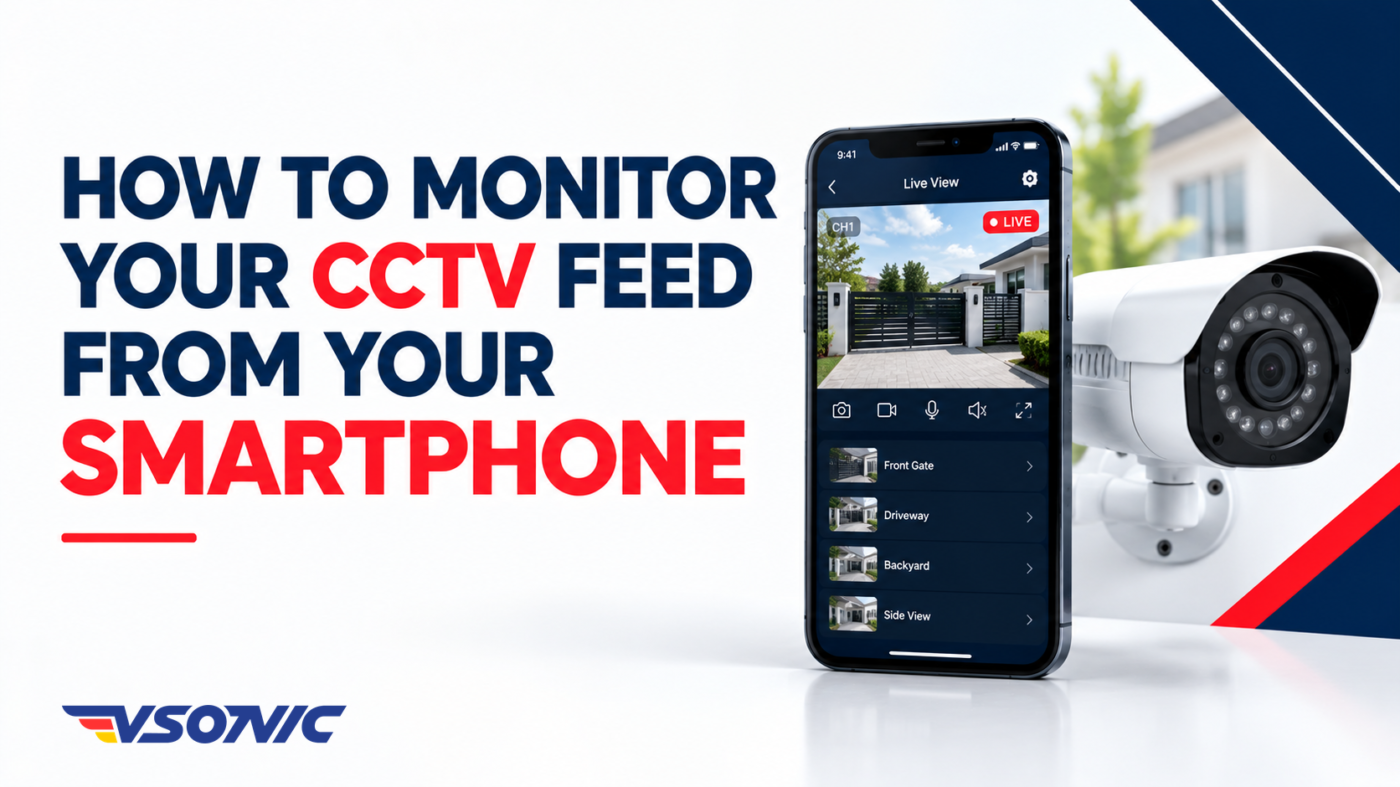
Imagine being away from home, at work, travelling or running errands and wanting to check what is happening at your property. With the right CCTV system and smartphone setup, you can view your security cameras remotely, receive alerts and check recorded footage without being physically present.
For Nigerian homeowners, shop owners, office managers and business operators, monitoring CCTV cameras from a smartphone offers greater convenience, visibility and control over security.
However, remote CCTV monitoring requires more than simply installing a camera and downloading an app. Your camera or recorder must support remote access, your network must be configured correctly, and your system needs appropriate security settings to protect your video feed.
In this guide, we explain how to monitor your CCTV feed from your smartphone, the equipment you need, how to set up remote viewing, common problems to avoid and the security measures that help keep your camera system protected.
1. What Do You Need to View CCTV Cameras on Your Phone?
Before setting up remote CCTV monitoring, confirm that your equipment supports smartphone access.
Depending on your system, you may need the following:
- CCTV cameras: IP cameras or compatible analogue cameras connected to a recorder.
- DVR or NVR: A digital video recorder (DVR) or network video recorder (NVR), if your cameras use one.
- Internet connection: Usually required at the camera location for remote viewing over the internet.
- Smartphone: An Android phone or iPhone compatible with the manufacturer’s app.
- CCTV monitoring app: The official application supported by your camera or recorder.
- Power supply: Reliable power for the cameras, recorder, router and any other equipment needed for remote access.
Not every CCTV system requires a separate DVR or NVR. Some IP cameras connect directly to your network and provide remote viewing through their supported applications.
The first step is to identify your CCTV camera’s brand and model. This will help you determine which app to use and whether your existing equipment supports remote viewing.
2. Download the Correct CCTV App
Once you know your camera’s brand, download the official mobile application recommended by the manufacturer.
Different brands use different applications. For example, Hikvision supports the Hik-Connect app for compatible devices, while Axis offers the AXIS Camera Station mobile app for supported systems. Other manufacturers have their own apps and remote-access services.
Hikvision Portal
+1
Follow these steps:
- Open the Google Play Store on Android or the Apple App Store on iPhone.
- Search for the official app recommended for your camera or recorder.
- Verify the developer to avoid fake or misleading applications.
- Install the app and create an account if required.
- Enable any available account-security features, including two-factor authentication.
Avoid downloading unfamiliar CCTV apps from unverified websites. Your monitoring app may have access to sensitive video feeds, so its authenticity matters.
3. Connect Your CCTV System to the Internet
For remote viewing while you are away, your camera system needs a working connection to the internet.
If you use a DVR or NVR, it will commonly connect to your router using an Ethernet cable. Some devices also support Wi-Fi, depending on the model and configuration.
For a standalone IP camera, follow the manufacturer’s instructions to connect it to your home or business network.
Check the following:
- The camera or recorder is powered on.
- The network cable is properly connected, or Wi-Fi setup is complete.
- The router has an active internet connection.
- The camera or recorder’s network settings are correct.
- The device’s remote-access feature is enabled, if required.
In Nigeria, your internet connection may use fibre broadband, a wireless router or a mobile network. The important requirement is a sufficiently stable connection at the premises where the CCTV system is installed.
Remember that the CCTV system’s location needs internet access, and your smartphone needs an internet connection when you are viewing it remotely. Your phone does not necessarily need to be connected to the same Wi-Fi network as the cameras.
4. Add Your CCTV Camera to the Smartphone App
This is the step that links your CCTV system to your phone.
The exact process depends on the manufacturer, but many systems use a QR code, serial number, device ID or account-based remote-access service.
A typical setup involves:
- Open the official CCTV app and sign in.
- Select the option to add a camera or device.
- Scan the QR code on the camera or DVR/NVR, or enter the required device information.
- Follow the prompts to complete device verification.
- Enter the authorised device credentials or verification code if requested.
- Wait for the app to confirm that the device is connected.
- Open the camera list and select a camera to view the live feed.
For example, compatible Hikvision devices can be added through Hik-Connect, using the manufacturer’s supported setup process.
Hikvision Portal
+1
Keep device verification codes and administrator credentials private. If your system was installed by a security company, ask the installer to show you how to add your phone and how to manage authorised users.
Important: Do not share your CCTV login details with people who do not need access to the system.
5. View Live CCTV Footage and Recorded Videos
After successfully connecting your system, you should be able to open the app and view available camera feeds.
Depending on the model and application, you may be able to:
- View one camera or multiple cameras at once.
- Switch between camera locations.
- Change video quality.
- View recorded footage by date and time.
- Save a snapshot or export a recording.
- Receive motion or event notifications.
- Control supported pan-tilt-zoom (PTZ) cameras.
Live viewing and playback are different features. Live view shows what the camera is capturing now, while playback lets you review footage stored on the camera, recorder or supported cloud service.
If you want to review events from earlier in the day, confirm that recording is enabled and that your system has enough storage. A camera that displays a live feed does not necessarily have recorded footage available.
6. Set Up Motion Detection and Smartphone Alerts
Remote monitoring becomes more useful when your CCTV system can notify you about important events.
Depending on the camera and app, you may be able to configure alerts for motion, people or other supported events.
To set up notifications:
- Open the camera or recorder settings in the app.
- Find the motion-detection or event-notification options.
- Enable the events you want to monitor.
- Adjust detection zones and sensitivity where supported.
- Allow notifications for the CCTV app in your smartphone settings.
- Test the setup to confirm that alerts arrive correctly.
Avoid setting motion sensitivity too high if moving trees, passing vehicles, insects or changing light conditions cause repeated alerts.
For businesses, use appropriate detection zones around entrances, storage areas, reception points or other important locations. Keep in mind that motion detection and AI-based person detection are not available on every camera.
Alerts can improve awareness, but they should not be treated as a guarantee that every incident will be detected.
7. Secure Your CCTV Feed Against Unauthorised Access
Your CCTV system protects your property, but an insecure setup could expose private footage to strangers.
The US Federal Trade Commission recommends using strong, unique passwords, updating camera software and securing the network to which cameras are connected.
Consumer Advice
+1
Take these precautions:
- Change default passwords: Replace factory-default credentials with strong, unique passwords.
- Enable two-factor authentication: Use it for your CCTV account if supported.
- Update firmware and apps: Install security updates from the manufacturer.
- Use secure remote access: Prefer the manufacturer’s supported remote-access service or a properly configured VPN. Avoid exposing camera interfaces directly to the public internet without appropriate expertise and safeguards.
- Limit access: Give each authorised user an appropriate account and remove access when it is no longer needed.
- Secure your Wi-Fi: Use WPA2 or WPA3 security where supported and change weak router passwords.
- Protect privacy: Position cameras appropriately and restrict access to footage of private areas.
For business installations, consider separating CCTV devices from the main office network where practical. If you are unsure how to secure remote access, ask a qualified CCTV installer or network professional to configure it.
8. Troubleshooting: Why Is Your CCTV Not Showing on Your Phone?
If your CCTV feed is unavailable, work through these common causes before assuming the camera is faulty.
| Problem | What to check |
|---|---|
| Device shows offline | Confirm the camera or recorder has power and internet access |
| Live video will not load | Test your phone’s connection and try a lower video-quality setting |
| App cannot add the device | Check the QR code, serial number, device compatibility and verification details |
| CCTV works on Wi-Fi but not mobile data | Check remote-access configuration, app permissions and the device’s internet connection |
| Recorded footage is missing | Check recording settings, storage capacity and playback dates |
| Alerts are not arriving | Check motion settings, app notification permissions and event rules |
If the feed works on your home Wi-Fi but not on mobile data, the system may only be configured for local access, or its remote-access service may not be working correctly. Follow the manufacturer’s troubleshooting instructions rather than changing advanced router settings at random.
Some systems rely on manufacturer-managed remote-access services, which can simplify configuration compared with manual port forwarding. The available method depends on the product.
Axis Communications
+1
If problems persist, contact your installer or the manufacturer’s support team.
9. What Internet Speed Do You Need for Remote CCTV Monitoring?
The required internet speed depends on the number of cameras, video resolution, frame rate, compression settings and whether you are viewing one camera or several simultaneously.
Higher-resolution video generally requires more bandwidth. If the connection is slow or unstable, you may experience buffering, delayed playback or reduced image quality.
To improve performance:
- Use a stable internet connection at the CCTV location.
- Position Wi-Fi cameras where they receive a reliable signal.
- Use Ethernet for compatible cameras or recorders where practical.
- Select a lower-quality stream when checking footage over a limited mobile connection.
- Check your data allowance if you use mobile broadband or a phone hotspot.
Remember that remote CCTV monitoring can consume significant data, particularly when viewing high-resolution video for long periods.
Frequently Asked Questions
Can I view my CCTV cameras from anywhere?
Yes, if your camera system supports remote access, is correctly configured and has a working internet connection. Your smartphone also needs internet access.
Can I monitor CCTV without Wi-Fi?
You may be able to use a wired internet connection or another supported network connection at the camera location. However, remote viewing over the internet still requires connectivity at the CCTV site and on your phone.
Can I view CCTV on my phone without a DVR?
Yes. Some IP cameras connect directly to a network and support viewing through a manufacturer’s app without a separate DVR. Other camera systems require a DVR or NVR.
Can I watch recorded CCTV footage on my phone?
Many systems support remote playback, but recording must be enabled and the footage must be available on local storage or a supported cloud service.
Can multiple people monitor the same CCTV system?
Many systems support multiple authorised users. Use the manufacturer’s account-sharing or user-management features instead of sharing one administrator password with everyone.
Conclusion: Monitor Your Security Cameras with Confidence
Monitoring your CCTV feed from your smartphone can help you stay informed about your home, shop, office or business when you are away.
To get started, confirm that your cameras support remote access, download the correct official app, connect your system to the internet and add the device using the manufacturer’s instructions. Then test live viewing, recorded playback and alerts before relying on the setup.
Most importantly, secure your CCTV account with strong passwords, available two-factor authentication and regular software updates. Reliable remote monitoring depends on both a properly configured system and good security practices.
Looking for CCTV cameras and surveillance technology for your home or business? Explore VSONIC.NG for technology products and security solutions in Nigeria.