
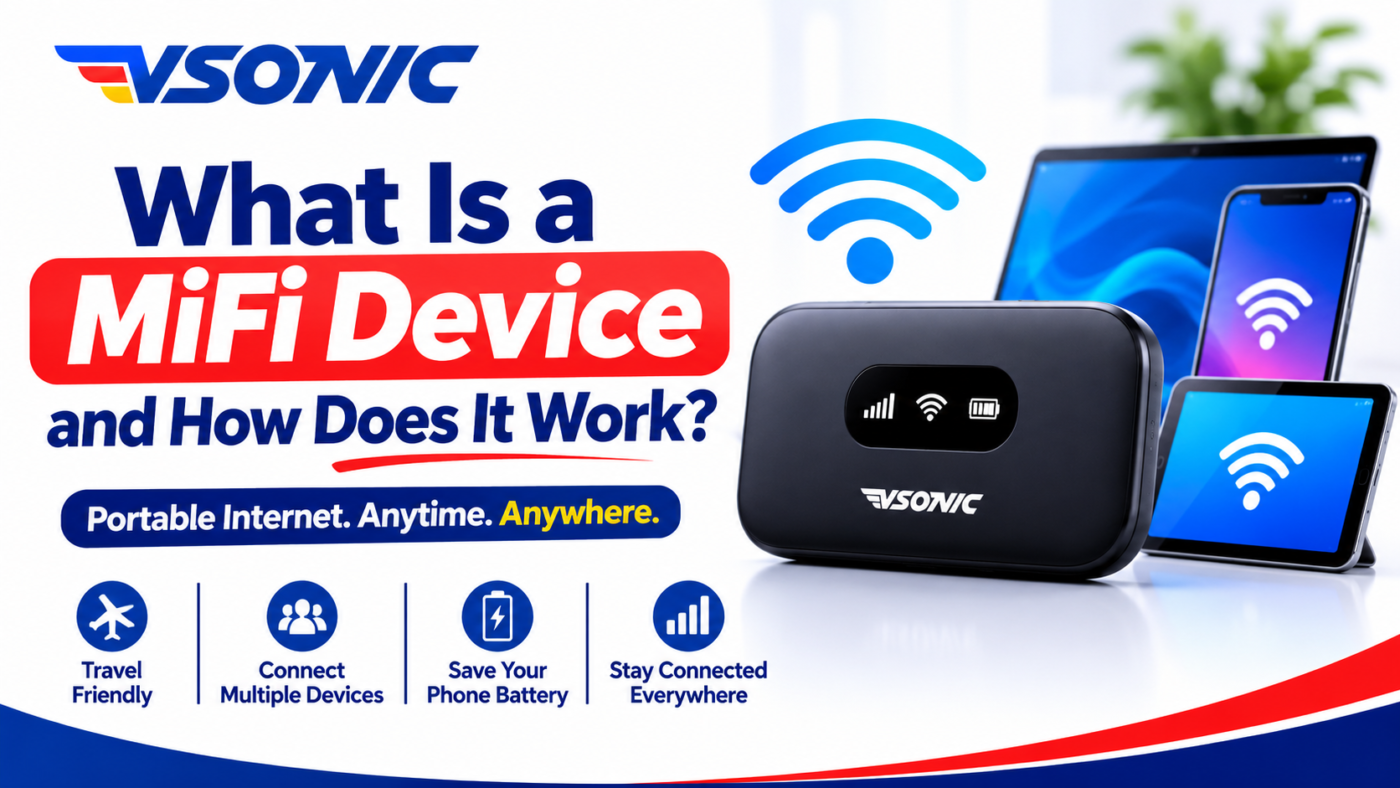
Have you ever needed internet access on your laptop, tablet and smartphone but did not want to depend on public Wi-Fi or drain your phone battery using a hotspot? A MiFi device could be a practical solution. It gives you a portable internet connection that you can carry between home, the office, school and other locations.
Whether you work remotely, attend online classes, travel frequently or need a convenient internet connection for multiple devices, understanding what a MiFi device is and how it works can help you decide whether it is right for you.
In this guide, we explain how MiFi works, its benefits, what to consider before buying one and how to choose a suitable device in Nigeria.
1. What Is a MiFi Device?
A MiFi device is a small, portable wireless router that uses a mobile network connection to provide internet access to other devices through Wi-Fi.
Instead of connecting your laptop or tablet directly to a mobile network, you insert a compatible SIM card into the MiFi device. It connects to the network and creates a private Wi-Fi hotspot that nearby devices can join.
Think of it as a pocket-sized internet router.
Depending on the model, a MiFi can connect smartphones, laptops, tablets and other Wi-Fi-enabled devices simultaneously.
Unlike a traditional home router that usually depends on a fixed broadband connection, a MiFi uses mobile data. This makes it useful when you need internet access in different locations.
2. How Does a MiFi Device Work?
The technology behind a MiFi device is relatively simple. It receives mobile internet from a network provider and shares that connection wirelessly.
Here is how the process works:
Step 1: Insert a SIM card.
Most MiFi devices use a physical SIM card from a supported mobile network. Some models may support eSIM or other configurations, so check the device specifications.
Step 2: Connect to a mobile network.
Once switched on, the device searches for a compatible mobile network and establishes a connection using supported technology such as 4G LTE or 5G.
Step 3: Create a Wi-Fi hotspot.
The MiFi converts its mobile data connection into a Wi-Fi signal. It usually broadcasts a network name (SSID) and requires a password to connect.
Step 4: Connect your devices.
Open the Wi-Fi settings on your laptop, smartphone or tablet, select the MiFi network and enter its password.
Step 5: Start browsing.
Once connected, your devices can access the internet through the MiFi’s mobile data connection.
The number of devices you can connect simultaneously depends on the MiFi model. Connecting more devices and performing demanding online activities can also affect overall performance.
3. What Are the Benefits of Using a MiFi Device?
A MiFi can make internet access more convenient, especially when you need connectivity beyond a single smartphone.
Here are some of its key benefits:
Portable Internet Access
Most MiFi devices are compact enough to fit into a pocket, handbag or backpack. You can carry one to work, school, business meetings or while travelling.
As long as there is compatible mobile network coverage, you can use your device without depending on a fixed broadband connection.
Connect Multiple Devices
Instead of activating a separate mobile hotspot on every phone, a MiFi allows several Wi-Fi-enabled devices to share one internet connection.
This can be useful for students with laptops and smartphones, professionals working with multiple devices and small teams that need occasional internet access.
Save Your Phone Battery
Using your smartphone as a hotspot can increase battery consumption, particularly when several devices are connected.
A dedicated MiFi has its own battery, so you can keep your phone available for calls, messages and other activities.
Convenient for Remote Work and Online Learning
A MiFi can provide internet access for video meetings, online classes, research, email and other everyday activities.
It is particularly useful when moving between locations where fixed broadband may not be available.
Private, Password-Protected Connection
Most MiFi devices allow you to configure a Wi-Fi password, helping you control who connects to your network.
Always change default login credentials where possible and use strong Wi-Fi security settings supported by the device.
4. MiFi vs Smartphone Hotspot vs Traditional Router
Although these options can all provide internet access, they work differently.
| Feature | MiFi device | Smartphone hotspot | Traditional router |
|---|---|---|---|
| Internet source | Mobile network | Mobile network | Usually fixed broadband or another internet source |
| Portability | Usually portable | Portable with your phone | Usually designed for a fixed location |
| Battery | Usually built-in rechargeable battery | Uses phone battery | Often requires continuous power |
| Multiple connections | Depends on model | Depends on phone | Depends on router |
| Best suited for | Portable shared internet | Occasional internet sharing | Home and office networking |
A MiFi is worth considering if you regularly share mobile internet across multiple devices. A smartphone hotspot may be sufficient for occasional use, while a traditional router may be more suitable for a permanent home or office internet setup.
5. What Should You Check Before Buying a MiFi in Nigeria?
Not all MiFi devices offer the same features or network performance. Before buying one, pay attention to the following:
Network Compatibility
This is one of the most important things to check.
Confirm that the MiFi supports the network provider you intend to use. Check its supported 4G LTE or 5G bands and whether it is network-unlocked or restricted to a particular operator.
Do not assume that a device advertised as 4G or 5G will automatically work optimally with every Nigerian network.
Network Coverage in Your Area
A MiFi cannot provide a strong internet connection where its mobile network has poor coverage.
Before purchasing, check which network performs best in the locations where you intend to use the device.
Network performance can vary between neighbourhoods, buildings and even different parts of the same property.
Battery Capacity
If you plan to use your MiFi while travelling or away from electricity, battery capacity matters.
Compare the manufacturer’s stated battery capacity and estimated operating time. Actual battery life depends on signal strength, the number of connected devices and how intensively you use the internet.
Number of Supported Devices
Consider how many devices you expect to connect simultaneously.
A MiFi used by one person may have different requirements from one shared by a family, group of students or small office.
Check the manufacturer’s maximum connection limit before buying.
4G or 5G Support
A 4G MiFi may be sufficient for browsing, messaging, online classes and many everyday activities.
A 5G MiFi can offer higher potential speeds where compatible 5G coverage is available. However, the device, network plan, coverage and signal conditions all affect actual performance.
Do not pay extra for 5G simply because it sounds faster. First confirm that you can use the technology where you live or work.
Security Features
Check whether the device supports password-protected Wi-Fi, modern security options and administrator settings.
Change default passwords and avoid sharing your network credentials with people you do not trust.
NCC Type Approval
When purchasing a SIM-enabled MiFi in Nigeria, consider whether the device meets applicable Nigerian Communications Commission (NCC) requirements.
The NCC provides a Device Checker service for checking device approval and verification status. Ask the seller for clarification if a device’s compliance status is uncertain.
6. How to Set Up and Use a MiFi Device
Getting started with a MiFi is usually straightforward.
- Charge the device according to the manufacturer’s instructions.
- Insert a compatible, active SIM card if the model requires one.
- Switch on the MiFi and allow it to connect to the mobile network.
- Check the device display or indicator lights for its connection status.
- Find the Wi-Fi name and password, usually printed on the device label or provided in its documentation.
- Open Wi-Fi settings on your phone or laptop and connect.
- Change the default Wi-Fi password through the device settings if supported.
Some MiFi devices also have a mobile application or web-based management page for checking data usage, changing network settings and managing connected devices.
Follow the instructions supplied with your particular model because setup procedures can differ.
7. Common MiFi Problems and How to Fix Them
Like other internet devices, MiFi routers can sometimes experience connectivity problems.
MiFi is not connecting to the internet: Check that the SIM card is active, your data subscription is valid and the device supports the network.
Slow internet speed: Check network signal strength, move the device closer to a window and disconnect devices that are not in use.
Connected but no internet access: Confirm that mobile data is available and check the device’s network settings or access point name (APN).
Battery drains quickly: Reduce unnecessary connections, avoid excessive heat and check the manufacturer’s battery guidance.
Devices cannot connect to Wi-Fi: Verify the password, check the maximum number of supported connections and restart the MiFi if necessary.
If the problem continues, consult the manufacturer’s support instructions or contact your network provider.
Final Thoughts
A MiFi device is a convenient way to access and share mobile internet without relying on your smartphone’s hotspot or a fixed broadband connection.
It can be useful for students, remote workers, travellers, small businesses and households that need flexible internet access. However, choosing the right one requires more than simply looking at its advertised speed.
Check network compatibility, local coverage, battery capacity, supported connections and the features that matter to your daily activities.
Ready to improve your internet connectivity? Explore the Connectivity collection on VSONIC.NG to discover routers, MiFi devices and other networking equipment for your home, office or business.
VSONIC.NG – Everything Tech. One Platform. One VSONIC.