
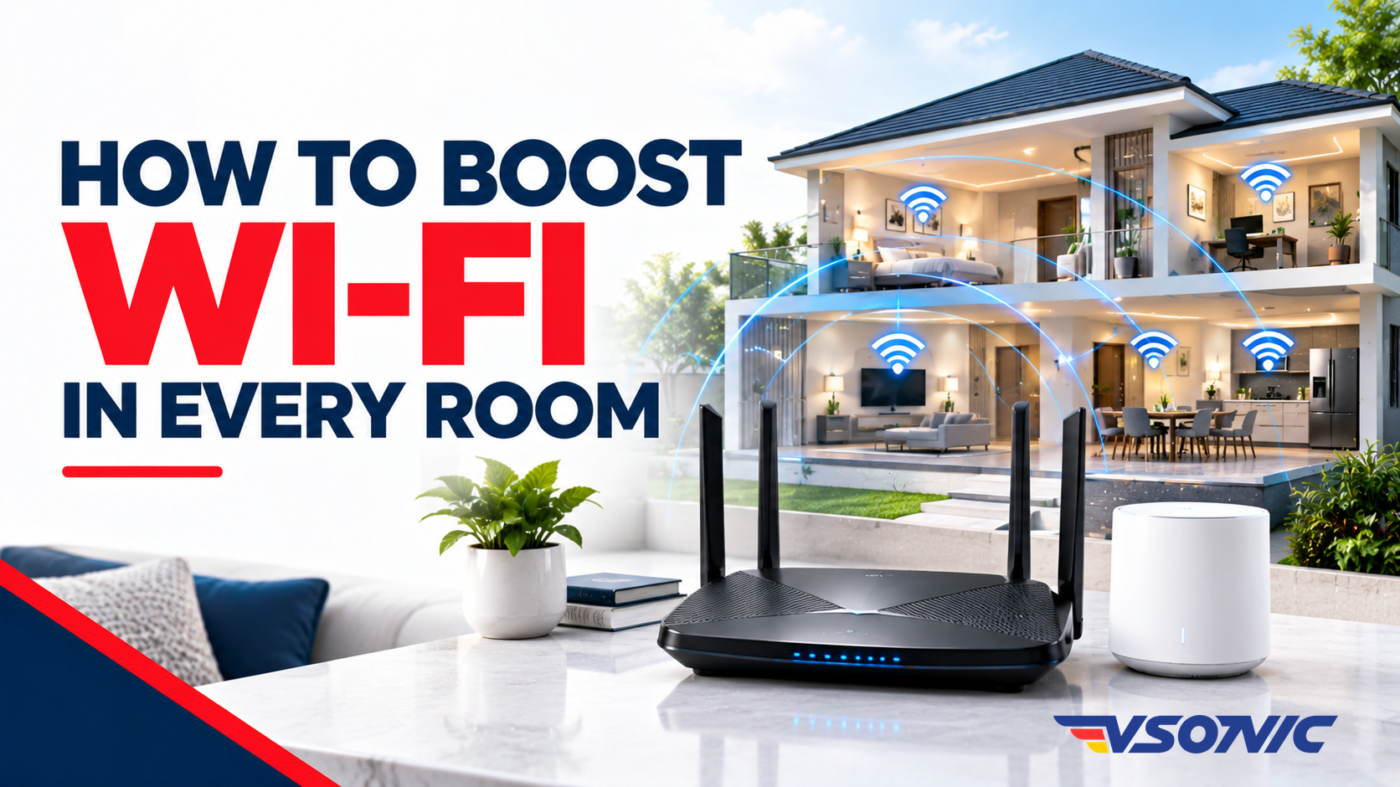
Slow Wi-Fi can be frustrating, especially when your internet connection works perfectly in the sitting room but struggles in the bedroom, kitchen, or home office. Video calls freeze, movies keep buffering, downloads take forever, and multiple devices compete for a stable connection.
The good news is that you may not need a new internet subscription to improve your Wi-Fi. With the right router placement, a few simple adjustments, and suitable networking equipment, you can improve coverage throughout your home.
Whether you use fibre broadband, a wireless router, or a 4G/5G MiFi in Nigeria, here are practical ways to boost your Wi-Fi signal and enjoy a more reliable connection.
1. Position Your Router Correctly
One of the easiest ways to improve Wi-Fi coverage is to move your router to a better location.
Wi-Fi signals spread outward from the router, but walls, furniture, metal surfaces, and other obstacles can weaken them. If your router is hidden inside a cabinet, placed behind a television, or positioned at one end of the house, some rooms may receive a weaker signal.
For better coverage:
- Place the router in a central location whenever possible.
- Keep it elevated on a shelf or table rather than on the floor.
- Avoid enclosing it inside cupboards or cabinets.
- Keep it away from large metal objects and thick concrete walls.
- Position its antennas according to the manufacturer’s instructions.
For Nigerian homes with multiple rooms, thick walls, or several floors, a central router location can make a noticeable difference.
2. Choose the Right Wi-Fi Band
Many modern routers support both 2.4 GHz and 5 GHz Wi-Fi bands, while newer equipment may also support 6 GHz.
Each band has different strengths.
| Wi-Fi band | Main advantage | Best use |
|---|---|---|
| 2.4 GHz | Generally reaches farther and passes through obstacles better | Distant rooms and basic smart-home devices |
| 5 GHz | Often provides higher speeds over shorter distances | Streaming, gaming, and devices near the router |
| 6 GHz | Offers additional spectrum and high performance on compatible devices | Supported newer devices in suitable locations |
The 2.4 GHz band may be better for a bedroom farther from the router, while 5 GHz may deliver faster performance in the sitting room or home office.
Actual results depend on your router, device, walls, interference, and internet plan. If your router uses one network name for both bands, it may select the band automatically.
3. Reduce Interference from Other Devices
Wi-Fi shares radio frequencies with other wireless equipment, and interference can affect performance.
Common sources include neighbouring Wi-Fi networks, Bluetooth devices, some cordless phones, and microwave ovens operating near the 2.4 GHz band.
To minimise interference:
- Keep your router away from microwave ovens and other potential sources of interference.
- Avoid placing it directly beside large clusters of electronic equipment.
- If your router supports it, try a less congested Wi-Fi channel.
- Use the 5 GHz band where appropriate and supported.
In apartment buildings and densely populated neighbourhoods, neighbouring networks can contribute to congestion. A router with good channel-selection features may help it find a clearer channel.
4. Upgrade Your Router if It Is Outdated
Your internet service provider may deliver a fast connection, but an older router can limit performance, especially when several devices are connected.
A router upgrade may be worthwhile if your current device frequently disconnects, struggles with multiple users, or cannot support the speeds available on your internet plan.
When shopping for a router, consider:
- Wi-Fi generation: Wi-Fi 6 or newer can offer useful improvements in capacity and efficiency with compatible devices.
- Coverage: Look for equipment suitable for your home’s size and layout.
- Device capacity: Consider how many phones, laptops, televisions, cameras, and smart-home devices use your network.
- Ethernet ports: Wired connections can improve reliability for desktop computers, televisions, and gaming systems.
- Security updates: Choose equipment from a manufacturer that provides firmware updates.
A more expensive router is not automatically better for every home. Match its capabilities to your space, devices, and internet connection.
5. Use a Wi-Fi Extender for Weak-Signal Areas
A Wi-Fi extender or repeater can help bring wireless connectivity into a room that receives a weak signal from your main router.
The extender receives the existing Wi-Fi signal and rebroadcasts it into another area. However, it cannot magically create a strong connection if it is installed where the original signal is already extremely weak.
For better results:
- Identify the area where your Wi-Fi becomes unreliable.
- Place the extender between that area and your router, where it can still receive a good signal.
- Follow the manufacturer’s setup instructions.
- Test the connection in the room where you need improved coverage.
Some extenders may reduce available throughput, particularly when they use the same wireless radio to communicate with both the router and connected devices.
An extender is often suitable for improving coverage in one or two rooms without replacing your existing router.
6. Consider a Mesh Wi-Fi System for Larger Homes
If your home has multiple floors, long corridors, thick walls, or several distant rooms, a mesh Wi-Fi system may be a better option than a single extender.
A mesh system uses multiple nodes that work together to provide broader wireless coverage under one network name. Compatible devices can connect through different nodes as you move around your home.
Mesh systems are particularly useful when:
- The router cannot be placed centrally.
- Several rooms consistently receive weak signals.
- You need more uniform coverage across multiple floors.
- Many people use the network in different parts of the house.
For the best results, place mesh nodes where they can maintain a strong connection to the rest of the system. If supported, wired Ethernet backhaul can improve performance and reliability.
Although mesh systems generally cost more than basic extenders, they can offer a more convenient solution for persistent whole-home coverage problems.
7. Connect Important Devices with Ethernet
Wi-Fi is convenient, but a wired Ethernet connection can be more reliable for devices that remain in one location.
If your television buffers during streaming, your desktop computer experiences unstable connections, or your gaming console suffers from latency, consider connecting it directly to the router using Ethernet.
A wired connection can also free up wireless capacity for phones, tablets, and other mobile devices.
For distant rooms where running an Ethernet cable is difficult, you may be able to use a mesh system with wired backhaul or another suitable networking solution, depending on your home’s layout.
8. Update Your Router’s Firmware
Router firmware controls important networking functions, security features, and device performance.
Manufacturers sometimes release updates to fix bugs, address vulnerabilities, and improve reliability.
To check for updates, open your router’s administration interface or the manufacturer’s official app, if supported. Follow the instructions for your exact model.
Avoid downloading firmware from unofficial websites or installing software intended for a different router model.
If your router is supplied by your internet service provider, check with the provider before making advanced changes.
9. Manage the Number of Connected Devices
Every connected device uses some amount of network capacity, even if its activity varies.
Phones downloading updates, televisions streaming high-resolution video, computers backing up files, and CCTV cameras uploading footage can all compete for bandwidth.
If your internet becomes slow when everyone is online, consider these steps:
- Pause large downloads when you need a stable video call.
- Schedule major updates for less busy periods.
- Disconnect devices that no longer need access.
- Check whether unfamiliar devices are connected to your network.
- Use your router’s Quality of Service (QoS) features if available to prioritise important activities.
However, adding more bandwidth will not always solve poor Wi-Fi coverage. If the connection is strong near the router but weak in another room, placement or additional networking equipment may be the real issue.
10. Secure Your Wi-Fi Network
An unsecured or poorly managed network can expose your devices to unwanted access and unnecessary traffic.
Use a strong, unique Wi-Fi password and enable WPA2-AES or WPA3 security where supported. Change default administrator credentials, install security updates, and review connected devices periodically.
If you suspect someone is using your network without permission, change your Wi-Fi password and reconnect your trusted devices.
For smart-home equipment such as CCTV cameras, smart plugs, and connected appliances, network security is particularly important.
11. Check Whether the Problem Is Your Wi-Fi or Your Internet Service
Sometimes the router is working correctly, but the internet connection supplied by your service provider is slow or unstable.
To distinguish between the two:
- Test your internet speed close to the router.
- Repeat the test in the room where you experience problems.
- If possible, test a device using Ethernet.
- Compare the results at different times of day.
If speeds are consistently good near the router but poor in distant rooms, your problem is likely related to wireless coverage or interference.
If speeds are poor even over a reliable wired connection, investigate your internet plan, service-provider performance, modem, or fibre connection.
For 4G and 5G home broadband, mobile signal strength and network congestion can also affect performance. Router placement near a suitable window may help, depending on the building and cellular signal.
Frequently Asked Questions
How can I boost Wi-Fi without buying a new router?
Start by repositioning your router, reducing interference, updating its firmware, and checking connected devices. These adjustments can improve coverage without requiring additional equipment.
Does a Wi-Fi extender make the internet faster?
An extender primarily improves coverage. It does not increase the speed supplied by your internet provider, and its own wireless connection can limit performance.
Is mesh Wi-Fi better than a Wi-Fi extender?
Mesh Wi-Fi is often more suitable for larger homes and persistent whole-home coverage problems. A basic extender may be sufficient when only one distant room needs a stronger signal.
Why is Wi-Fi slow in one room but fast in another?
Walls, distance, interference, building materials, and the Wi-Fi band can all affect signal strength. Moving the router or adding a suitable extender or mesh node may help.
Does a faster internet plan improve Wi-Fi coverage?
Not necessarily. A faster plan increases the potential internet speed available to your home, but it does not automatically improve the router’s wireless range.
Final Thoughts: Enjoy Better Wi-Fi in Every Room
A reliable whole-home Wi-Fi connection begins with the right setup. Start by positioning your router correctly, selecting suitable Wi-Fi bands, reducing interference, and checking your internet performance. If some rooms still receive weak signals, consider a Wi-Fi extender, mesh system, or wired Ethernet connection.
For Nigerian households balancing remote work, online learning, streaming, smart-home devices, and everyday browsing, dependable connectivity makes a real difference.
Ready to improve your home network? Explore VSONIC.NG for networking and connectivity technology, including routers and other suitable solutions for your home or office.